Presenting with a microphone and a web page, without an encoder having to be installed, configured and talked through on the phone. You open the tab, pick your account, and go on air.
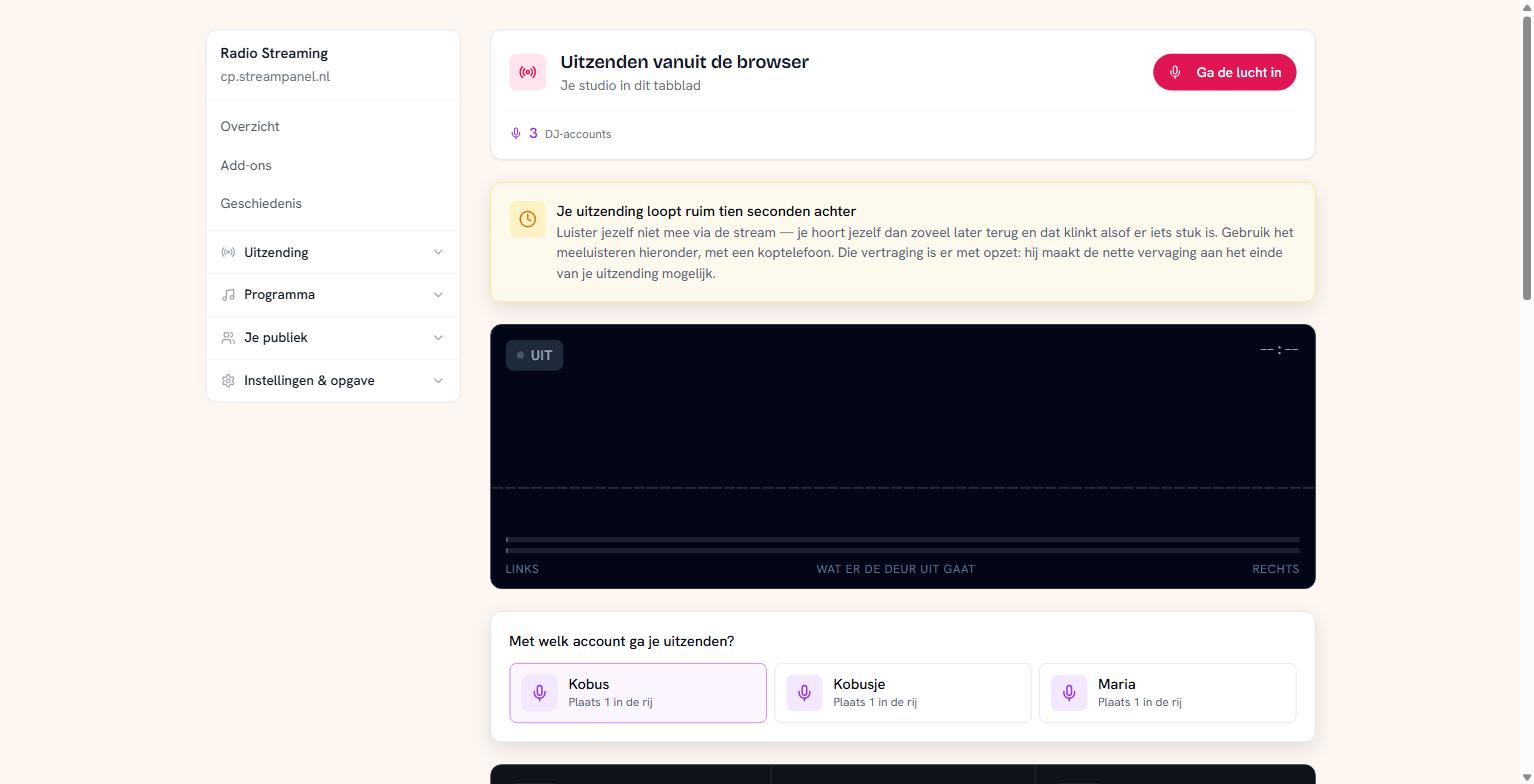 The browser broadcasting screen, with the delay warning
This is part of the larger plans. If it isn't in yours, the page stays visible but the button is off.
Going on air
- Choose which account you broadcast with. You need a DJ account for that; see Live DJs.
- Allow use of your microphone when your browser asks.
- Click Ga de lucht in.
From that moment you take over from the AutoDJ, exactly as an encoder would. Same harbour, same slot in the queue, same takeover if someone with more priority arrives. Nothing further down the chain notices the difference.
Never monitor through your own stream
This is the most important sentence in this guide.
Your broadcast runs a good ten seconds behind. Monitor yourself through the ordinary stream and you'll hear yourself that much later, which sounds like something is broken. It isn't: that delay is the buffer that makes the clean fade at the end of your broadcast possible.
Use the monitoring on the page itself, with headphones. That doesn't lag.
Headphones aren't a luxury, by the way: without them your microphone picks up your own broadcast and you get feedback.
What you see on screen
The meter shows what's going out, left and right separately. If it slams to the edge you're sending too hot and it will distort; if it stays at the bottom you're too quiet.
The clock at the top counts how long you've been on air.
If the connection drops
The key your browser uses to get on air is single-use: it's spent as soon as it has opened one connection. If your line drops, simply click Ga de lucht in again — a fresh key is minted then.
What you should not do is leave the page open for a long time and only start much later — but that doesn't happen, because the key is only requested at the moment you click. If you do get an error that looks like a wrong password, reload the page and try again.
A presenter who isn't a customer
If you want a presenter to broadcast without letting them into your dashboard — where your invoices, domains and other services live — use the studio. That's a separate login at its own address, purely for broadcasting. You arrange it from the DJ account.