A short list, and that's deliberate. What you bought — listeners, bitrate, mount points — isn't here: that changes with your plan, not with a slider.
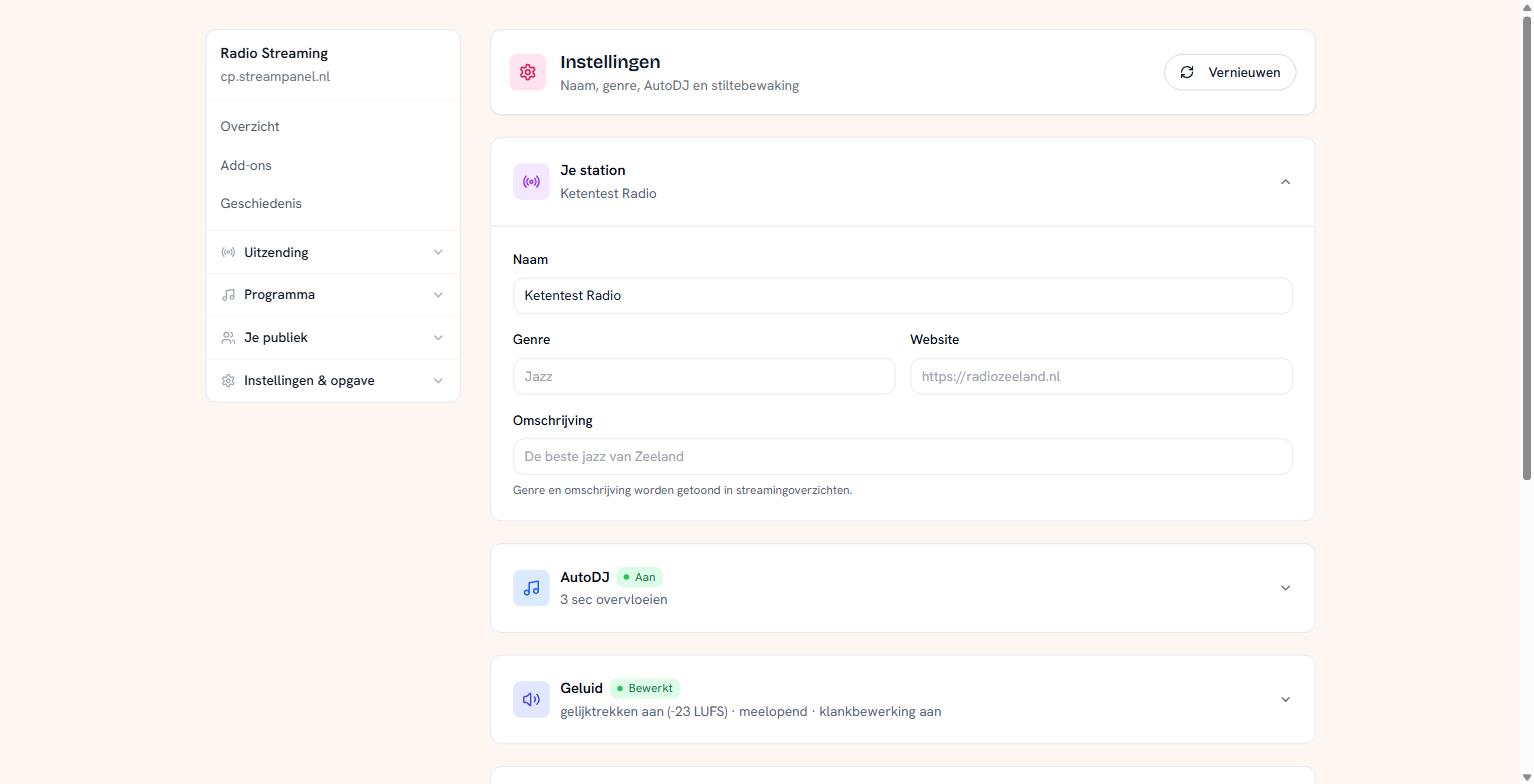 The settings screen with station, AutoDJ and sound
Your station
Name, genre, website and description. Genre and description are shown in streaming directories, so fill them in if you want to be found.
The name is also what appears in your listener's player.
Logo
Your logo appears in the player, in the widgets on your website and in apps that read your station's public details.
A logo is a PNG, JPEG or WebP file of at most 1 MB. SVG doesn't work. Square works best everywhere.
Choose Logo kiezen (choose logo), or Ander logo (other logo) if there's one already. Weghalen (remove) takes it away; the player and widgets then show no logo, and you can choose a new one later.
A logo works in every plan.
AutoDJ
Here you set the crossfade: how many seconds one track overlaps the next. Three seconds is a pleasant default. Zero means hard cuts, which is sometimes better for speech or idents.
Sound
Three things that make your station sound professional:
Levelling makes all tracks play at the same volume. Without it one record jumps out and the next disappears, and that's the fastest way to sound amateurish. The value is in LUFS and is a negative number; −23 is the quiet standard, −16 is louder and more usual for pop.
Adaptive adjusts the volume during playback instead of only measuring in advance. Turn this on if your source material varies a lot.
Processing is about how your whole broadcast sounds. There are three choices:
- Geen (none): the sound goes out the way it came in.
- Ingebouwd (built-in): firmer, more even sound, in every plan.
- Radioklank: a full processor that makes your station sound full and dense, like a broadcaster.
More about this in Radio sound: making your station sound like a broadcaster.
Silence detection
There are two things here that look alike and aren't.
Reporting silence is always allowed, in every plan. Your station notices nothing is coming out and warns you.
Catching silence — automatically falling back on your music if the source drops — depends on your plan.
That distinction isn't obvious, so it's spelled out. You can therefore always know it's silent, even without something automatically taking over.
The number of seconds decides how quickly action is taken. Too short and a pause in a programme already counts; too long and your audience has gone. Between fifteen and thirty seconds usually works.
Note: 0 seconds means silence detection off here. If you don't want to change a setting, leave the field as it is rather than emptying it.
What you won't find here
Your station's address — the slug — is deliberately absent. It's in every URL a listener saved and in every DJ's encoder. Changing it breaks all of that at once. If it really has to change, get in touch.