What is n8n?
n8n is a powerful open-source workflow automation platform — similar to Zapier or Make, but self-hosted on your own VPS. With 400+ native integrations, built-in AI capabilities, and a visual drag-and-drop editor, you have full control over your automations and your data.
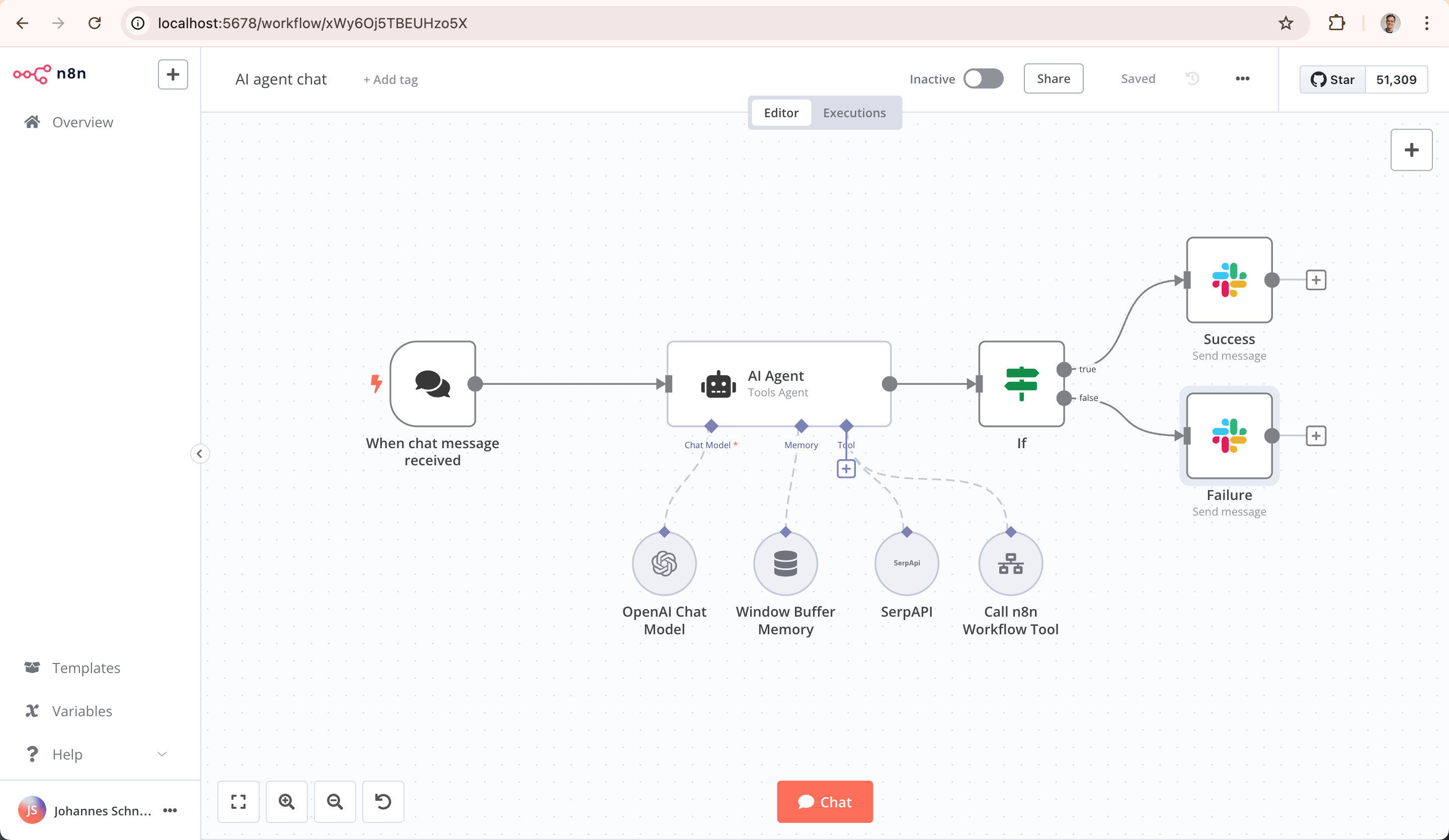 n8n Workflow Editor
System Requirements
| Component | Minimum | Recommended | Enterprise |
|---|---|---|---|
| RAM | 2 GB | 4 GB | 8 GB |
| CPU | 1 vCPU | 2 vCPU | 4 vCPU |
| Storage | 25 GB NVMe | 50 GB NVMe | 100 GB NVMe |
| OS | Ubuntu 24.04 | Ubuntu 24.04 | Ubuntu 24.04 |
Step 1: Order VPS with n8n Template
The easiest way to install n8n is via our 1-click installation:
- Go to the VPS Configurator
- Choose your desired package (minimum 2 GB RAM)
- Select n8n as the application template
- Complete your order
After payment, your VPS is automatically provisioned with the complete n8n stack.
Step 2: What Gets Installed Automatically?
Our 1-click installation configures the following components:
- Docker Engine — Containerized deployment for reliability
- PostgreSQL 16 — Professional database backend (more reliable than SQLite)
- Caddy 2 Web Server — Reverse proxy with automatic HTTPS via Let's Encrypt
- n8n (latest) — The latest version of n8n in a Docker container
- Daily Backups — Automatic backup every night at 03:00 (7 days retained)
- Update Script — Easy updates with a single command
All components are installed in /opt/n8n/.
Step 3: First Access to n8n
Once the installation is complete:
- Open your browser and go to
http://YOUR-VPS-IP - n8n displays the registration screen
- The first user to register automatically becomes the owner/admin
- Fill in your name, email address, and password
- You're now ready to build workflows!
Important: Create your admin account as soon as possible after installation. Anyone with access to the IP address can otherwise claim the first account.
Step 4: Connect Your Own Domain (Recommended)
For a professional setup with HTTPS:
Set Up DNS
Create an A record at your domain provider:
n8n.yourdomain.com → A → YOUR-VPS-IP
Configure Caddy
Connect via SSH to your VPS and edit the Caddyfile:
sudo nano /opt/n8n/Caddyfile
Replace the existing content with:
n8n.yourdomain.com {
    reverse_proxy n8n:5678
}
Restart Caddy:
cd /opt/n8n && docker compose restart caddy
Caddy automatically obtains a free SSL certificate via Let's Encrypt. After a few seconds, your n8n is accessible at https://n8n.yourdomain.com.
Step 5: Updating n8n
To update n8n to the latest version:
sudo /opt/n8n/update.sh
This script:
- Downloads the latest n8n Docker image
- Restarts the containers automatically
- Cleans up old Docker images
- Your workflows and data remain fully preserved
Step 6: Managing Backups
Automatic Backups
Every night at 03:00, an automatic backup is made of:
- The PostgreSQL database
- The n8n configuration and data
Backups are stored in /opt/n8n/backups/ (last 7 days).
Manual Backup
You can also make a manual backup:
sudo /opt/n8n/backup.sh
Restoring a Backup
To restore a backup:
# Stop n8n
cd /opt/n8n && docker compose down

# Restore the database
gunzip < /opt/n8n/backups/BACKUP-FILE.sql.gz | docker exec -i n8n-postgres psql -U n8n

# Start n8n again
docker compose up -d
Directory Structure
The complete n8n installation is located in /opt/n8n/:
/opt/n8n/
├── docker-compose.yml    # Docker configuration
├── Caddyfile             # Web server configuration
├── .env                  # Environment variables
├── update.sh             # Update script
├── backup.sh             # Backup script
├── backups/              # Backup files
└── data/                 # n8n workflow data
FAQ
How many workflows can I run? Unlimited! There are no limits on the number of workflows or executions. The only limitation is your VPS capacity.
Can I install n8n manually? Yes, but we recommend the 1-click installation. Manual installation requires Docker, PostgreSQL, and a reverse proxy — our template configures all of this automatically.
What if I need more resources? You can upgrade your VPS at any time via your dashboard. RAM and CPU upgrades require a short reboot, storage can be expanded online.
Does n8n run on Windows? Our VPS templates run on Ubuntu 24.04 (Linux). n8n itself runs in a Docker container, so the OS doesn't matter for n8n.